Strofa Display
Your stage screen,
completely automated.
Flash any x86 PC once with the Strofa Display image. It boots directly into a dedicated kiosk, pairs with the Strofa app in seconds, and handles song requests, a photo carousel, play history and social media — all night, without you touching it.
x86-64 PCs (mini PC, NUC or laptop) · Ubuntu 24.04 LTS · 16 GB USB/SSD required
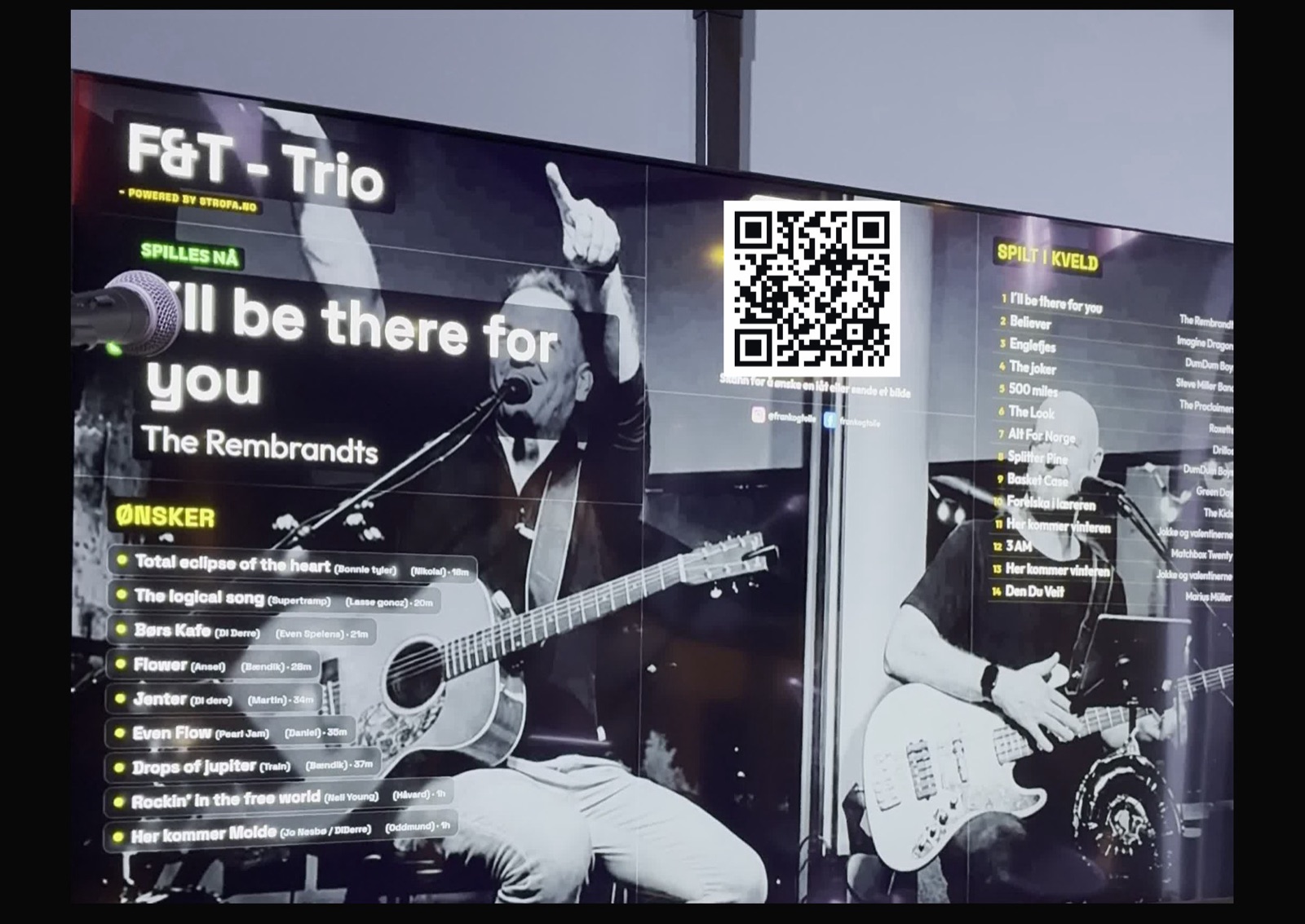
Now Playing
The audience always knows what song is on.
The moment you open a song in Strofa — whether by tapping it in your song list, navigating the setlist with a foot pedal, or jumping to it during a live session — the title and artist appear on the display screen. The update travels in real time and typically arrives in under a second, even over a mobile hotspot.
What you see in the app is what they see on screen. You don't interact with the display PC at any point during the night.
When the band takes a break and no song is active, the display switches to a rotating "On a break" mode. The idle messages cycle every 5 seconds — "Having a beer 🍺", "Tuning up 🎸", "Counting the tips 🤑", "Arguing about the setlist 📋" — so the audience knows you'll be back, and gets a chuckle in the meantime.
- ›Updates in under 1 second in real time WebSocket
- ›Shows song title and artist name
- ›Works over the internet — no local network between iPad and display PC required
- ›Font size configurable from the Scene Editor in the app
- ›Idle mode with rotating messages when nothing is playing
Song Requests
The audience requests songs from their phone. You manage them from the app.
A QR code is always visible on the right side of the display. When scanned, it opens a simple web page — no app to install, no account needed — where the audience can type a song title and optionally their name and the artist. The request appears on the display and in the Strofa app within a second.
In Strofa, the requests appear in a queue. For each request you can Accept (the dot turns green on screen — everyone sees it's been noticed), Mark as Playing (shown prominently next to now-playing), or Mark as Played (it fades out gracefully). You can also silently reject a request — it disappears from the display without any notification to the sender.
The queue auto-scales. If five requests come in, the text is large and comfortable. If twenty come in, the font shrinks and spacing tightens so they all fit without scrolling. This happens automatically — the display handles it.
The system works over the public internet. The display PC, the iPad and the audience's phones all connect to Supabase independently — there's no requirement for them to be on the same WiFi network.
- ›No app install — works in any modern mobile browser
- ›Queue visible to the whole audience in real time
- ›Status: Pending → Accepted → Playing → Played
- ›Silent reject — disappears from display, no notification
- ›Queue auto-scales font size to fit any number of requests
- ›Works over mobile data — no shared WiFi needed
- ›Last 6 hours of requests shown; older ones expire automatically
Photo Carousel
The audience sends selfies. They appear on the big screen.
From the same request page that handles song requests, the audience can also snap a photo and send it to the display. The photo button opens the phone camera directly in the browser — no upload UI, no accounts, no app. One tap, one photo, and it lands on the screen.
Photos appear in the right column of the display and rotate through a carousel, cross-fading every 12 seconds. A hashtag watermark — based on the band name — is overlaid at the bottom of each photo. If you'd rather not show photos, you can toggle the feature off from the Strofa app and the photo button disappears from the request page immediately.
Privacy and GDPR: Photos are stored in the cloud with a band or user ID, never attached to any personal account. They are automatically deleted from the server after 6 hours. A note on the display screen informs the audience of this. If someone wants a photo removed sooner, they contact the band — there is no self-service removal link (to avoid abuse). You can delete individual photos from the Strofa app at any time.
- ›Phone camera opens directly in the browser — no upload step
- ›Appears on the display within 2–3 seconds
- ›Rotates every 12 seconds with a smooth cross-fade
- ›Band name watermark overlaid automatically
- ›Toggle on/off from the Strofa app — takes effect immediately
- ›Auto-deleted from server after 6 hours
- ›Supports up to 30 photos per 6-hour window
- ›Individual photos deletable from the app
Rotating every 12 seconds · Cross-fade transition
Photos are deleted after 6 hours. Want one removed sooner? Contact the band.
Play History
Every song you play is logged. The audience can catch up.
The middle column of the display shows everything played so far this evening, in order. A song is added to the list automatically the moment you navigate away from it in Strofa — either by opening the next song, moving forward in the setlist with a foot pedal, or switching from the live session leader device.
This is useful for latecomers who missed the first half, and for audience members who want to know the name of that song they heard earlier. The band name is shown at the top; the numbered list grows throughout the night.
The list shows up to 40 songs and covers the last 6 hours. At the start of each new gig, the history resets automatically — so the next night starts with a clean slate. If you play the same venue two nights in a row, there's no bleed-over from the previous show.
- ›Song added automatically when you move to the next song in Strofa
- ›Shows title, artist and time played
- ›Up to 40 songs visible on screen
- ›Covers the last 6 hours — resets per gig
- ›Works with setlist navigation, foot pedal and live session
Layout & design
Your screen, your layout.
The default is a three-column layout — requests on the left, play history in the middle, photo carousel and QR on the right. But you can customise every aspect of this from the Strofa app's Scene Editor, and the display reloads the new layout within a second of saving.
Scene Editor
Open the display in the Strofa app, tap the layout icon and the Scene Editor opens. You can drag column borders to resize them, and enable or disable individual widgets per column. Changes preview on the display in real time as you adjust. You save separate layouts for landscape and portrait orientation.
Widgets you can show or hide
Each column can contain any combination of: Now Playing (with configurable font size XS–XL), Song Requests queue (with configurable font and colour accent), Play History, Photo Carousel, QR code and Social media strip. You can put all six in one column if you want — though we don't recommend it.
Portrait mode
Running a vertical screen — a rotated TV backstage, a tall monitor in the lobby — the display switches to a two-column layout optimised for 9:16. The QR code moves to a compact strip at the bottom of the left column. Set up in the Strofa app when pairing the display in portrait orientation, or append ?layout=portrait to the URL manually.
Artist image background
Upload a band or artist photo to Strofa and it appears as a soft gradient at the left or right edge of the display — your face framing the content, not blocking it. You control the width (5–50 % of screen), opacity, vertical crop position, and can apply a black & white, warm or cool colour filter to match your stage aesthetic.
Social media strip
Add Instagram, TikTok and Facebook handles in the Strofa app under your band or profile settings. They appear in a strip at the very bottom of the right column with the official platform icons. A simple nudge that gets a few more followers after a good gig.
Colour accents & font sizes
Section labels like "Song requests" and "Played this evening" can be white, orange (the Strofa accent) or green. The now-playing block has five size presets. The request queue has four font-size presets and scales automatically based on how many requests are in the queue. All of this is set in the Scene Editor, no code required.
Setup guide
From zero to live
in under 10 minutes.
There is no software to configure, no operating system to install and no ongoing maintenance. You flash one image file, boot the machine, connect it to the internet and pair it with the app. After that you never touch it again.
Download the image
Download strofa-display-latest.img.xz — a complete pre-built Ubuntu 24.04 system image with Chromium kiosk, the Strofa Display software and all dependencies pre-installed. The file is approximately 2.9 GB compressed and expands to about 4 GB when flashed.
You don't need to set up Ubuntu, install packages or configure anything. Everything is already in the image.
Flash to USB stick or SSD
Use Balena Etcher (available for Mac, Windows and Linux). Select the downloaded .img.xz file and your USB stick or SSD as the target. Etcher handles the .xz decompression automatically — you don't need to unzip anything first.
Minimum size: 16 GB. A USB 3 stick works fine; an SSD connected via USB will boot about 30 % faster and is more reliable for permanent installations.
⏱ Flashing takes 5–10 minutes depending on USB write speedBoot the machine
Plug the USB into your x86 PC, connect an HDMI cable to a TV or monitor, and power on. The machine needs to be configured to boot from USB — on most PCs you press F12 (or F8/F9/F11 depending on brand) immediately at startup to open the boot menu and select the USB drive.
The system boots directly into the Strofa Display kiosk — no login screen, no desktop, no browser chrome. On first boot this takes about 60 seconds. On subsequent boots it's typically 20–30 seconds.
→ Full x86 setup guide with manufacturer boot keysConnect to the internet
The display needs internet access to receive Now Playing updates, accept song requests and upload photos. You have two options:
Ethernet (simplest): plug a network cable into the machine. It connects automatically. No configuration needed.
WiFi via Bluetooth: open the Strofa app → Apps → Strofa Display → Add display → tap "Add via Bluetooth". The display appears in the list. Select your WiFi network, enter the password, and the display connects automatically. See the section below for how this works.
Enter the pairing code
Once online, the display shows a 6-digit pairing code on screen. The code is valid for 10 minutes. If it expires, a new one is generated automatically.
In the Strofa app: Apps → Strofa Display → + → type the 6-digit code. You'll be asked to give the display a name (e.g. "Stage right TV") and choose whether it belongs to your private library or to a specific band. Hit Confirm — the display updates immediately and is now live.
From this point the display is fully managed from the Strofa app. You can rename it, move it to a different band, edit the layout, toggle photos on or off — all without touching the machine.
✓ Total time from unboxing to live: typically under 10 minutesWiFi over Bluetooth — no ethernet cable needed
If you're setting up at a venue and don't have an ethernet cable, the Strofa app can push the WiFi credentials to the display wirelessly over Bluetooth Low Energy (BLE). The display advertises itself as a BLE peripheral while waiting for a network connection — the app scans, finds it, connects, and writes the SSID and password over an encrypted GATT characteristic. The display then connects to that WiFi network and shows the pairing code.
This means you can set up the display entirely from your iPhone — box it up at home, bring it to the venue, plug it in and provision it in under a minute without a cable. The Bluetooth connection is only used for initial provisioning; once the display is on WiFi it communicates exclusively over the internet.
Hardware
Works on what you already have.
The Strofa Display image runs on any x86-64 machine — an old laptop, an Intel NUC, a thin client or a cheap mini PC. If it runs 64-bit Ubuntu 24.04, it runs Strofa Display. If you have something in a drawer, that works perfectly; a small mini PC costs about €100 new.
x86-64 PC or mini PC
Old laptops, Intel NUCs, thin clients, mini PCs — if it runs 64-bit Ubuntu 24.04, it runs Strofa Display. Useful if you already have something in a drawer. HDMI out is required; USB-C to HDMI adapters work fine.
- ·Any Intel or AMD 64-bit CPU from approximately 2012 onwards
- ·2 GB RAM minimum; 4 GB or more recommended
- ·16 GB USB stick or install to internal drive
- ·HDMI, DisplayPort or VGA (via adapter) to TV/monitor
- ·Built-in WiFi or USB WiFi adapter (for BLE provisioning, needs BT 4.0+)
Old laptops work well: just tape the lid shut if you're using an external display, and disable the laptop screen in display settings (handled automatically by the kiosk). Battery provides a bonus UPS — power interruptions don't restart the display.
Minimum requirements:
x86-64 CPU · 2 GB RAM · 16 GB USB/SSD · HDMI output · Internet connection
For BLE WiFi provisioning:
Bluetooth 4.0+ adapter (built-in on most laptops and mini PCs)
OS:
Ubuntu 24.04 LTS (pre-installed in the image — you don't install it yourself)
Supported outputs:
HDMI · DisplayPort · USB-C with DP alt mode · VGA via active adapter
Get started
Flash once. Never touch it again.
Updates to the display UI are pushed automatically via the Strofa app — no USB required after the first setup. The display just runs.
Requires a Strofa subscription · 7-day free trial available in the app